

Beta installation
Install Nariqui.
Choose Windows or Linux Desktop for one PC, or Docker Compose or Portainer for self-hosting. Each opens your writing workspace in a browser.
I’m using:
You need Docker Compose v2 and a working Docker engine on the installation computer. Windows and macOS users can use Docker Desktop with Linux containers.
You need access to an existing Portainer Docker Standalone environment. Portainer pulls the official image automatically; no terminal or manual image import is needed.
Install Windows Desktop
Install Nariqui on a Windows 11 x64 PC using a conventional Windows installer. The application runtime is included: no Docker, Python, Node, WSL or command line is needed.
Get the Windows Beta from the official download page. Its filename, installer and launcher identify the product version and Windows R revision.
- Obtain the Windows installer from Nariqui.org. Check the version, notices and verification guidance supplied with it.
- Run the installer and follow the setup wizard.
- Start Nariqui from the Windows Start menu. Its local backend opens your writing workspace in the default browser.
Your working manuscripts stay on your Windows machine by default, in Nariqui’s configured writing location. Review the destination shown when creating or importing a project. This does not grant access to any Windows folder or make projects available to other devices.
Windows Desktop is designed for ordinary local writing without internet once installed; final offline validation is pending. Optional external services, including a configured AI provider, may need internet.
Use Save and independent project backups. Before quitting, save or discard changes deliberately and close your open projects, then choose Quit Nariqui in the launcher. Closing a browser tab alone leaves the local backend running.
Windows displays a security warning?
Why does this happen?
Nariqui is a relatively new application, and its Windows installer is not yet digitally signed by a recognized publisher. Windows may therefore display a SmartScreen warning because it doesn't recognize the application.
This warning alone doesn't mean Nariqui is unsafe.
What should I do?
If you downloaded Nariqui from our official website (nariqui.org) and Windows displays an unrecognized app warning:
- Click More info.
- Click Run anyway.
- Continue with the installation.
Only proceed if you're confident the installer came from our official download. If Windows explicitly identifies malware or another threat, don't bypass that warning.
Button labels may vary depending on Windows version and security settings.
Verify the Windows installer
Download the checksum and detached signature beside the installer from the official release. In PowerShell, run Get-FileHash -Algorithm SHA256 .\Nariqui-Setup-V0.3.0-Beta-R14-x64.exe and compare the result with its checksum. For publisher verification, import the supplied public key into GnuPG, independently confirm fingerprint 2F5BBFE687AD7052AD0AF7D22069BC5DB8E66B80, then verify the installer’s detached .asc signature.
Installer SHA-256: f760c78e53e40a0e4341b714ef165f8dc8601d530e1e8c54951c4634b4823f92
Windows checksum · Windows signature · Publisher signing key
Install Linux Desktop
Use an Ubuntu 22.04, 24.04 or 26.04 LTS graphical desktop on x86_64 hardware with a recent Firefox or Chromium/Chrome browser. The local runtime is included; Python and Docker are not required.
- Download the
.debfrom the official download page and verify its checksum and signature. - In the folder containing the download, run
sudo apt install ./nariqui-desktop_0.3.0.beta0-1_amd64.deb. APT installs the separate Ubuntu GTK 3 and desktop-integration dependencies. These must already be present for a fully offline installation. - Set your preferred installed browser as default, then choose Nariqui from the application menu. Run it as your normal user.
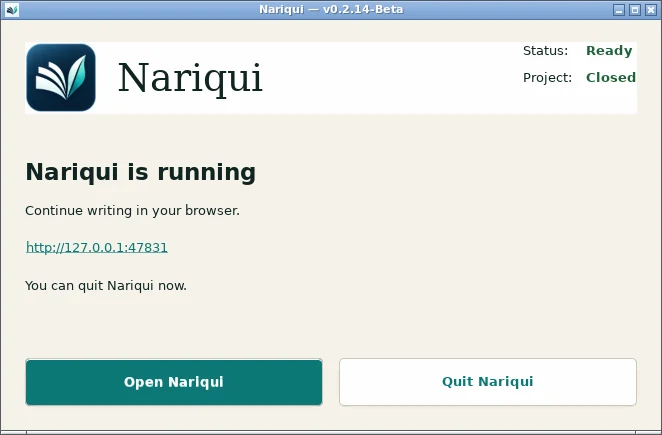
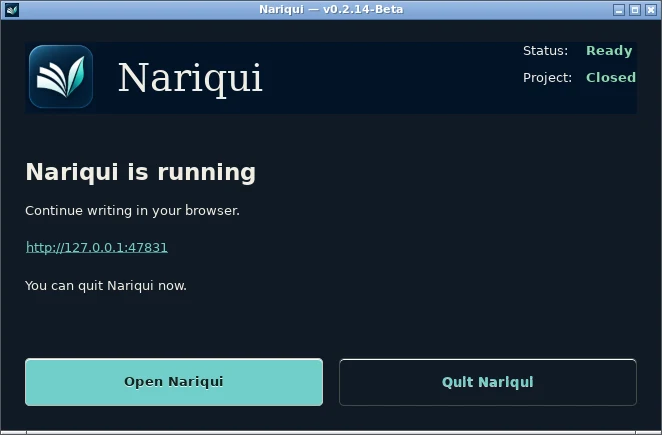
The native launcher follows the system theme and shows runtime and project status. Open Nariqui opens your browser. Save or discard deliberately and close your projects before Quit Nariqui; closing a browser tab leaves the backend running. Successfully journaled drafts can be recovered in the same browser profile and localhost origin with intact browser storage.
Projects default to ~/.local/share/nariqui/projects/, configuration to ~/.config/nariqui/ and application state to ~/.local/state/nariqui/. Back these up and keep portable .qui exports. Do not change the saved port or clear browser data when recovering writing.
Upgrade, remove or reinstall
Save and close projects, then Quit Nariqui for all logged-in users before installing the new .deb with APT. Running instances block replacement. sudo apt remove nariqui-desktop removes the application while preserving user projects, settings and browser recovery; purge also preserves those user files. Reinstall using the same browser/profile to resume. After an interrupted package operation, use sudo dpkg --configure -a or reinstall the exact package; do not bypass package locks.
Verify the Ubuntu installer
Run sha256sum nariqui-desktop_0.3.0.beta0-1_amd64.deb and compare with the published checksum. Verify the detached OpenPGP signature with the publisher key, independently checking fingerprint 2F5BBFE687AD7052AD0AF7D22069BC5DB8E66B80.
The download filename uses .beta0-1; the package manager displays ~beta0-1 in the internal version. The supplied checksum files use the download filename.
To verify the signature without renaming, run gpg --verify nariqui-desktop_0.3.0.beta0-1_amd64.deb.asc nariqui-desktop_0.3.0.beta0-1_amd64.deb after importing and independently checking the publisher key.
SHA-256: bea35f483399d203c8d5d85e5c757847bd2cf04423bc5d90726eb1d2cd18c3eb
The owner has verified the GTK launcher’s appearance, project status and protected Quit on physical Ubuntu 22.04. Automated installed-package checks use Ubuntu 22.04/24.04/26.04 under Xvfb/Openbox. This is not complete GNOME/Wayland or stock Firefox Snap desktop acceptance.
Requirements and supported platforms
Use Docker Engine 28 or newer with Compose v2, or Portainer’s Docker Standalone environment on a compatible host. The image is Linux/amd64. ARM hosts require amd64 emulation and are not a validated Beta platform. Use a recent desktop Chrome, Firefox or Edge; Safari and iOS remain unvalidated.
A fresh installation needs internet to pull the image. Writing works while your Nariqui server is reachable. On a NAS, localhost means the NAS itself: use authenticated HTTPS access from your computer.
The official image is ghcr.io/aurelica/nariqui:latest. It follows owner-approved releases. Both methods below use the same YAML and preserve projects and settings in Docker volumes.
Install with Docker Compose
- Install Docker and Compose v2 if you do not already have them.
- Create a folder for this installation and save the official YAML below as
compose.yaml. Keep this folder for future upgrades. - From that folder, run
docker compose up -d. - When Nariqui is healthy, open http://127.0.0.1:8080 on the Docker computer. For a NAS or server, use the authenticated HTTPS guide.
# Official Docker Compose / Portainer Stack (Docker Standalone, Linux/amd64).
# latest moves only for owner-approved releases. To pin, replace latest with
# 0.3.0-Beta, or use ghcr.io/aurelica/nariqui@sha256:<published digest>.
services:
  nariqui:
    image: ghcr.io/aurelica/nariqui:latest
    platform: linux/amd64
    init: true
    restart: unless-stopped
    # Optional NARIQUI_HTTP_PORT changes the host port AND allowed browser origins.
    # Keep 127.0.0.1. For a NAS / NPM, follow the authenticated HTTPS guide.
    ports:
      - "127.0.0.1:${NARIQUI_HTTP_PORT:-8080}:8080"
    environment:
      NARIQUI_PROJECT_ROOTS_JSON: '{"projects":"/var/lib/nariqui/projects","samples":"/app/samples"}'
      NARIQUI_READ_ONLY_ROOTS_JSON: '["samples"]'
      NARIQUI_APPLICATION_STATE_DIR: /var/lib/nariqui/state
      NARIQUI_TRUSTED_HOSTS_JSON: '["127.0.0.1","localhost"]'
      NARIQUI_TRUSTED_ORIGINS_JSON: '["http://127.0.0.1:${NARIQUI_HTTP_PORT:-8080}","http://localhost:${NARIQUI_HTTP_PORT:-8080}"]'
    # Keep the same stack/project name and volume names when upgrading.
    # Samples is built into the image, read-only; no host Samples mount is needed.
    volumes:
      - nariqui-projects:/var/lib/nariqui/projects
      - nariqui-state:/var/lib/nariqui/state
    user: "10001:10001"
    read_only: true
    tmpfs:
      - /tmp:mode=1777,noexec,nosuid,size=64m
    cap_drop:
      - ALL
    security_opt:
      - no-new-privileges:true
    healthcheck:
      test: ["CMD", "python", "-c", "from urllib.request import urlopen; urlopen('http://127.0.0.1:8080/api/health', timeout=3).read()"]
      interval: 30s
      timeout: 5s
      start_period: 10s
      retries: 3

volumes:
  nariqui-projects:
  nariqui-state:
Open the official YAML as plain text →
docker compose up -dCheck health from a terminal
docker compose ps
curl --fail http://127.0.0.1:8080/api/health
Install with Portainer
- Choose your Docker Standalone environment, then open Stacks → Add stack → Web editor. Name the stack
nariqui. - Paste the complete YAML below.
- If port 8080 is already used, add the optional Stack environment variable
NARIQUI_HTTP_PORTwith a free port, such as8081. - Click Deploy the stack. Portainer pulls the official image automatically.
- Open the stack’s container and confirm its status becomes healthy.
# Official Docker Compose / Portainer Stack (Docker Standalone, Linux/amd64).
# latest moves only for owner-approved releases. To pin, replace latest with
# 0.3.0-Beta, or use ghcr.io/aurelica/nariqui@sha256:<published digest>.
services:
  nariqui:
    image: ghcr.io/aurelica/nariqui:latest
    platform: linux/amd64
    init: true
    restart: unless-stopped
    # Optional NARIQUI_HTTP_PORT changes the host port AND allowed browser origins.
    # Keep 127.0.0.1. For a NAS / NPM, follow the authenticated HTTPS guide.
    ports:
      - "127.0.0.1:${NARIQUI_HTTP_PORT:-8080}:8080"
    environment:
      NARIQUI_PROJECT_ROOTS_JSON: '{"projects":"/var/lib/nariqui/projects","samples":"/app/samples"}'
      NARIQUI_READ_ONLY_ROOTS_JSON: '["samples"]'
      NARIQUI_APPLICATION_STATE_DIR: /var/lib/nariqui/state
      NARIQUI_TRUSTED_HOSTS_JSON: '["127.0.0.1","localhost"]'
      NARIQUI_TRUSTED_ORIGINS_JSON: '["http://127.0.0.1:${NARIQUI_HTTP_PORT:-8080}","http://localhost:${NARIQUI_HTTP_PORT:-8080}"]'
    # Keep the same stack/project name and volume names when upgrading.
    # Samples is built into the image, read-only; no host Samples mount is needed.
    volumes:
      - nariqui-projects:/var/lib/nariqui/projects
      - nariqui-state:/var/lib/nariqui/state
    user: "10001:10001"
    read_only: true
    tmpfs:
      - /tmp:mode=1777,noexec,nosuid,size=64m
    cap_drop:
      - ALL
    security_opt:
      - no-new-privileges:true
    healthcheck:
      test: ["CMD", "python", "-c", "from urllib.request import urlopen; urlopen('http://127.0.0.1:8080/api/health', timeout=3).read()"]
      interval: 30s
      timeout: 5s
      start_period: 10s
      retries: 3

volumes:
  nariqui-projects:
  nariqui-state:
Open the official YAML as plain text →
Open Nariqui
On the Docker computer, open http://127.0.0.1:8080 (or your chosen port). From another computer, including access to a NAS, use authenticated HTTPS access.
Nariqui has no built-in user authentication. Keep the direct HTTP port on localhost; do not publish it to your LAN or the Internet.
Ports, storage and updates
To change the local port with Compose, run NARIQUI_HTTP_PORT=8081 docker compose up -d and use that same value for later commands, or save it in an optional .env file. In Portainer, keep the value in the Stack environment. This also updates the allowed browser origins.
Keep the two named volumes for projects and application settings. Samples is included read-only. For custom host storage, see storage options. Changing the stack name or volume names can create empty storage instead of opening your existing work.
Upgrades are deliberate: back up first, then pull and recreate using the same stack and volumes. Upgrade instructions → To select this exact release, replace :latest with :0.3.0-Beta in the image line.
Offline archives, checksums and signatures are optional advanced procedures. Beta licence and third-party notices remain available.
Nariqui is ready for your first project. Before important work, set up and verify a backup.
Need custom storage, backups or remote access?
Advanced setup →